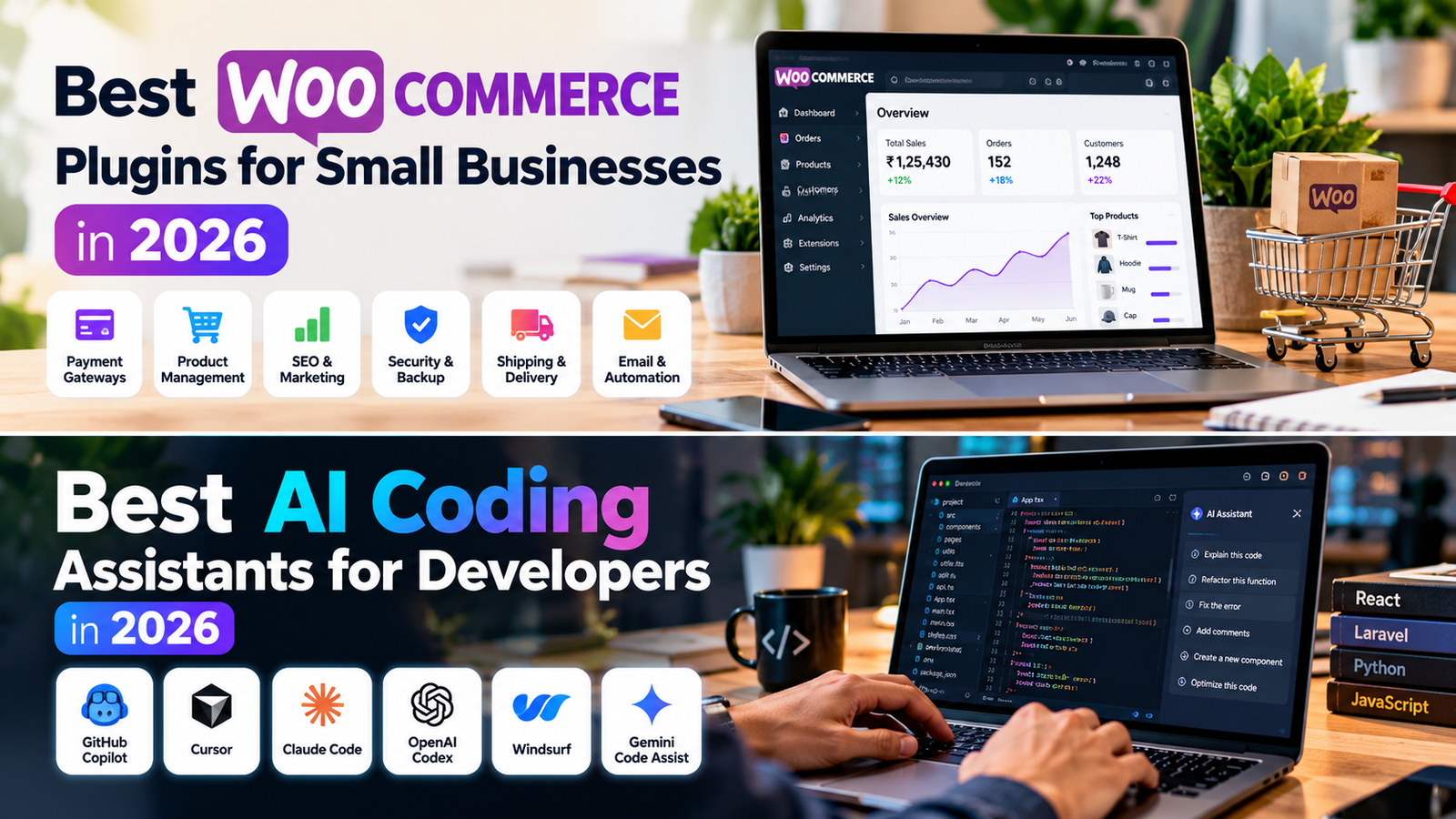
Running an online store with WooCommerce gives small businesses flexibility, but the right plugins can make everyday work easier. Instead of installing dozens of extensions, start with tools that solve a clear problem: accepting payments, improving product discovery, protecting customer data, and managing orders.
Important: Plugin features, prices and plan limits can change. Check each developer’s official listing before installing or paying, and test new plugins on a staging site when possible.
What should a small business look for in a WooCommerce plugin?
- Compatibility: Check support for your WordPress version, WooCommerce version and checkout setup.
- Performance: Avoid overlapping plugins that load unnecessary scripts or duplicate features.
- Support and updates: Prefer actively maintained plugins with clear documentation.
- Total cost: Compare annual renewals, paid add-ons and transaction fees—not just the starting price.
- Privacy and security: Review permissions and the data a plugin collects.
Useful WooCommerce plugin categories
1. Payments: WooCommerce-compatible payment gateways
Choose a gateway that supports your customers’ preferred payment methods and your country. Indian stores may need UPI, cards and net banking, while international stores may prioritize card payments and wallets. Compare settlement time, refunds, transaction charges and support. Install only the official integration from the provider or a trusted developer.
2. SEO: Yoast SEO or Rank Math
An SEO plugin helps manage page titles, meta descriptions, XML sitemaps and other search settings. Product pages still need original descriptions, useful specifications, clear images and sensible category structure. Choose one main SEO plugin rather than running two plugins that manage the same metadata.
3. Caching and performance: LiteSpeed Cache or a compatible alternative
LiteSpeed Cache can be useful on compatible LiteSpeed hosting. If your server uses another stack, choose a caching solution designed for that environment. Test cart, checkout, account and payment pages after changing cache settings; these pages often need special exclusions.
4. Backups: UpdraftPlus or your host’s backup system
Backups are valuable before updates, redesigns and plugin changes. Confirm that backups include both the database and files, are stored somewhere separate from the website, and can actually be restored. A backup that has never been tested is not a complete recovery plan.
5. Security: Wordfence or another reputable security tool
A security plugin may provide firewall features, malware scanning or login protection. It should complement—not replace—strong passwords, limited administrator accounts, updates and reliable hosting. Avoid installing multiple overlapping security suites without a clear reason.
6. Shipping and order management
Shipping extensions can calculate rates, connect courier services, print labels or send tracking details. Pick one that supports your actual carriers and delivery workflow. Verify whether label generation, tracking or automated status updates require a paid plan.
7. Email and abandoned-cart recovery
Reliable transactional email helps customers receive order confirmations and password-reset messages. Abandoned-cart tools may recover lost sales, but use clear consent practices, accurate messaging and a frequency that respects customers. Check whether your email provider charges based on contacts or monthly sends.
Recommended starter stack
For a new small store, begin with one payment gateway, one SEO plugin, a compatible caching solution, a tested backup method and one security tool. Add shipping, email marketing or conversion extensions only when your order volume or workflow justifies them. Fewer well-maintained plugins are often easier to secure and troubleshoot.
How to install plugins safely
- Back up the site and database.
- Read the plugin’s official documentation and update history.
- Install from the WordPress directory or the developer’s official website.
- Test product pages, cart, checkout, coupons, emails and mobile layouts.
- Monitor speed and error logs after activation.
Final verdict
The best WooCommerce plugins are the ones that fit your store—not the ones with the longest feature list. Start with essential business needs, confirm compatibility and ongoing costs, and review installed plugins every few months. This approach helps keep your store faster, safer and easier to manage as it grows.
Frequently asked questions
How many plugins should a WooCommerce store use?
There is no universal ideal number. Use only maintained plugins that provide real value, and check performance and compatibility rather than focusing on a specific count.
Are free WooCommerce plugins enough?
Free versions may cover the basics. Paid plans can be worthwhile when you need support, advanced integrations or automation, but compare the full annual cost first.
Should I install plugins directly on my live store?
For major changes, test on a staging copy first. Always back up before updating or installing critical checkout, payment or security extensions.